

How to Use accessaloo: A Complete Guide of the Accessible Toilet Finder App

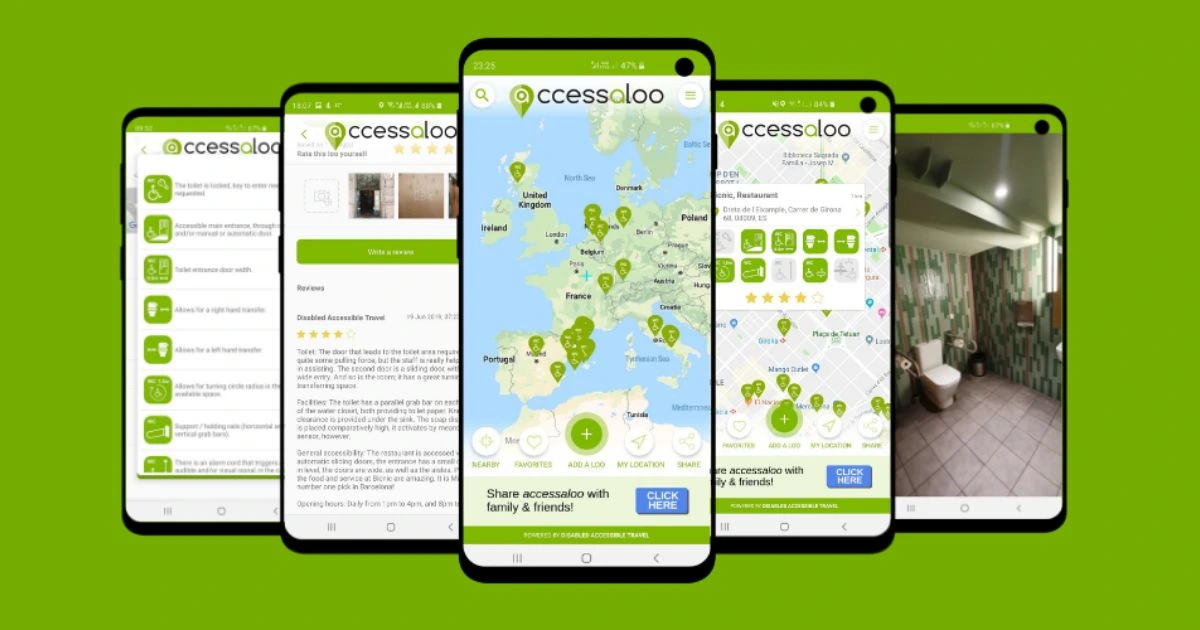
Looking for an accessible toilet near you while you are out and about? The accessaloo toilet finder app allows you to find the closest accessible public toilets, check accessibility features, and help others by sharing your experience.
This step-by-step guide will show you exactly how to use accessaloo to easily find an accessible toilet that fits your needs, as well as how to add the accessible restrooms you may discover on your journey and more.
Download the App
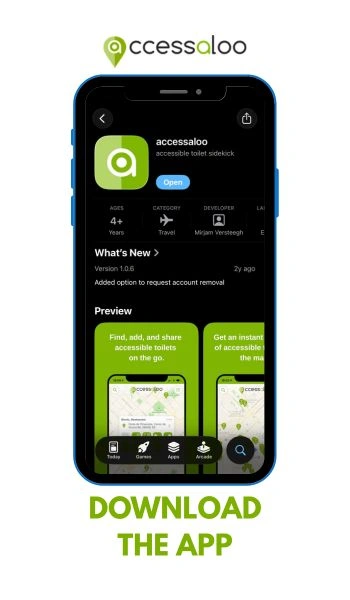
Let us start at the very beginning: how to download the free accessaloo App. If you are reading this post on your phone, perfect! You can just click the button corresponding to your phone below.
If you are reading this article on your computer or tablet, no worries! Just grab your phone and go to the App Store if you use iPhone, or the Play Store if you use Android. Search for “accessaloo” and tap the app!
Once you found the app you can press “download”.
Done? Thank you for downloading accessaloo! Now that you have the handy app ready on your phone, you are almost ready to explore accessible toilets near you.


Set Up Your Account
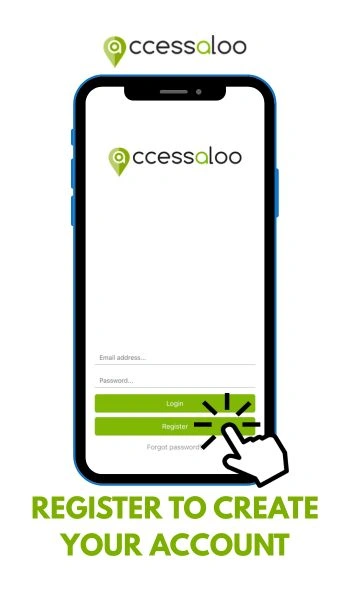
When you open the app, you will get the screen you can see on the image. Here, press “Register” if you are a first-time accessaloo user.
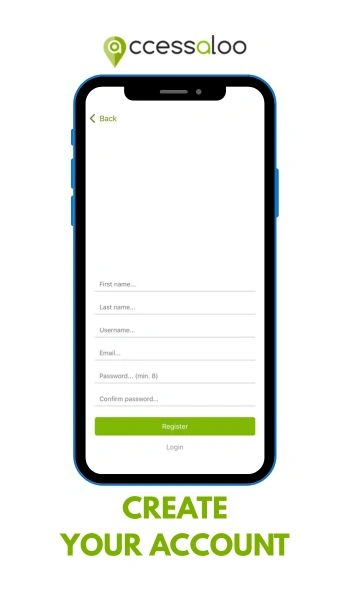
Let’s take a look at how you register. You will see the following fields to fill out:
- First Name
- Last Name
- Username: choose a username. This is shown to others when you add a toilet to the app
- Email: fill in your email address here. Make sure to remember what email address you use. You will need it when logging into the app!
- Password: choose a password that is at least 8 characters long.
- You don’t have to add uppercase letters, lowercase letters, numbers, or special characters.
- Please make sure to remember your password or save it somewhere safe.
- Confirm password: enter the same password as the field above
Click the green “Register” button, and voilà! You have successfully created your accessaloo account!
Log In
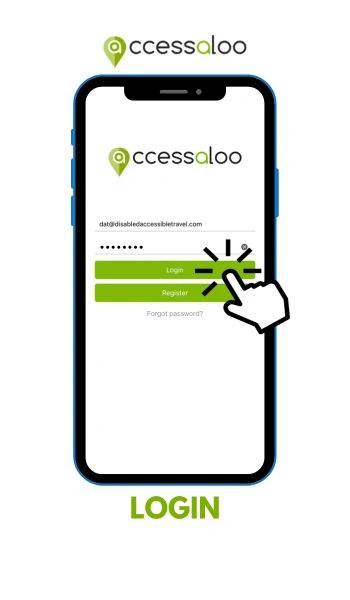
You are now back on the login screen. Here, you can fill in your email address and the password you’ve used to create your account. Click “Login” and you are another step closer to exploring accessible toilets near you!
Allow accessaloo to Use Your Location
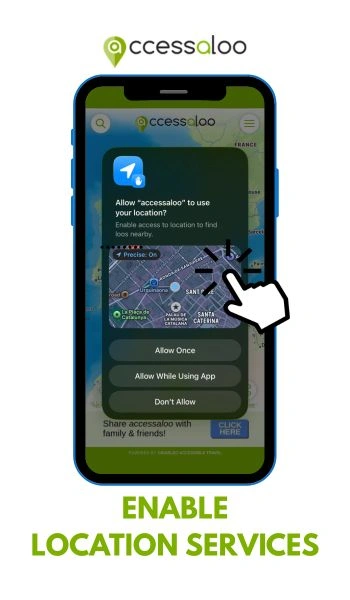
After logging in, you will be asked to enable access to your location services. Allowing this will help you find toilets near you a lot quicker!
Forgot Your Password?
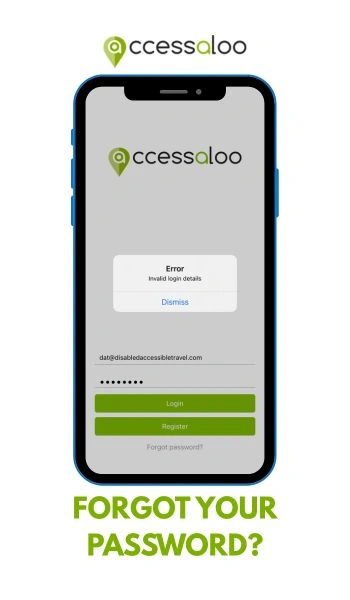
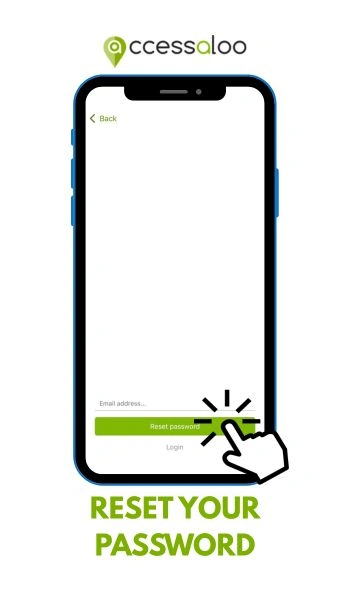
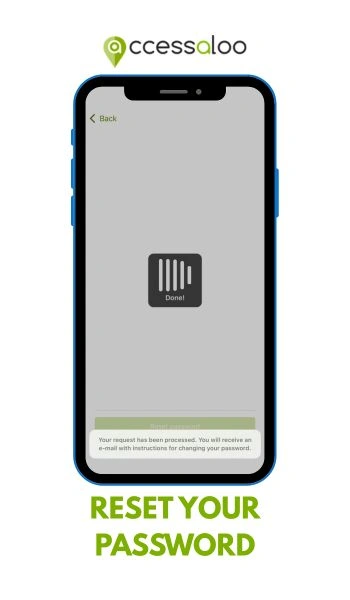
No worries! You can just click the “Forgot password?” button to reset it. Just fill in your email address and press “Reset password” and you will receive an email with instructions to reset your password.
Find Accessible Toilets with accessaloo
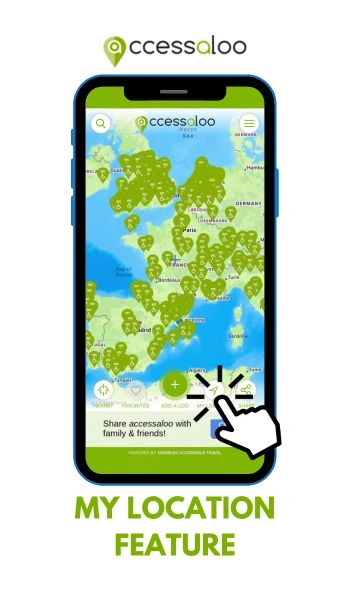
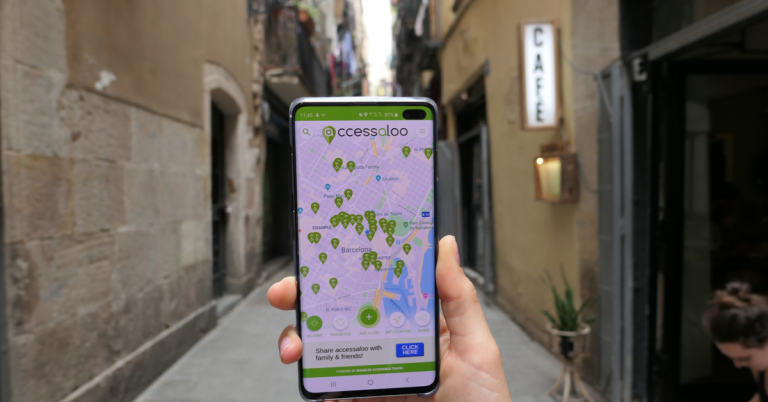
Ready to start exploring with accessaloo? Now that your accessaloo app has started up, you will see a map of the world. Thanks to geolocation, your position appears on the screen as a blue circle with a white edge. You can press the “MY LOCATION” button on the bottom right of your screen to center the map based on your current location.
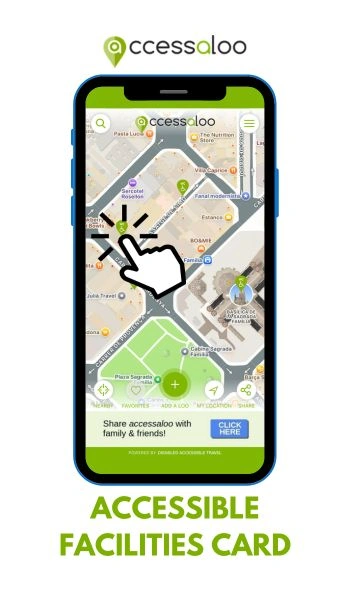
To find accessible toilets near you, look for the green location pin icons. These have the text “WC” and a wheelchair icon on them.
Use the “Nearby” Feature
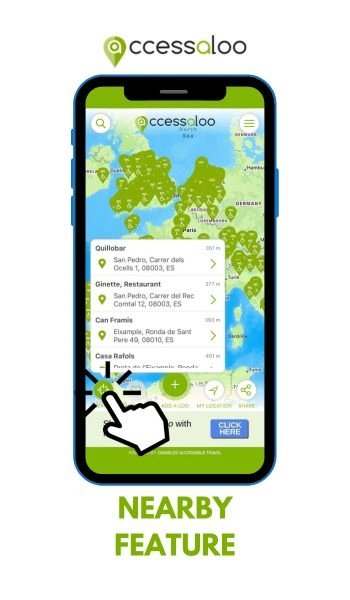
In addition to the green location markers, you will find a button on the left bottom of your screen called “NEARBY”. When you click this button, you will get a list of the toilets that are closest to your current location ranked from closest to furthest away.
You can scroll through the list and click on whichever toilet you want to know more about. Clicking a toilet in this list will bring you to the accessible facility card preview of that toilet.
Search a Location
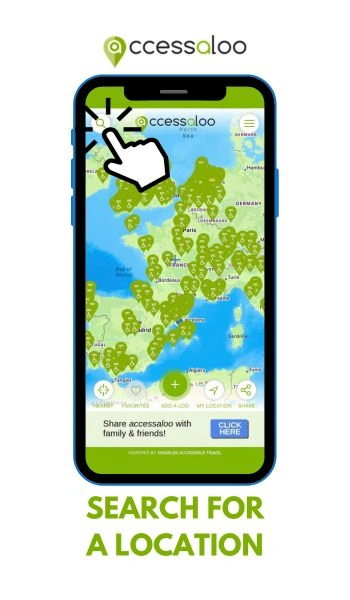
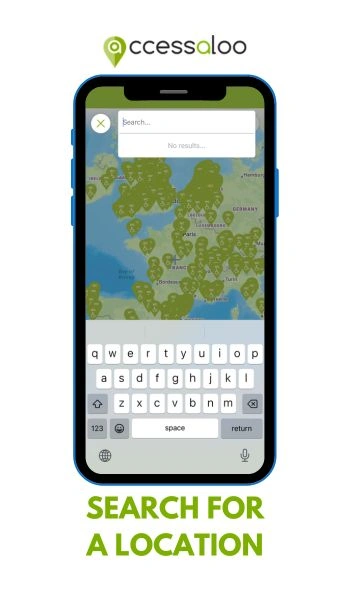
If you want to check out toilets at a specific location, you can use the search function. You can find it when you click the top right button that has the magnifier icon. Type in the location and you will get a list of suggestions. Click the one you want, and the map will be centered around that specific location.
Check out an Accessible Toilet
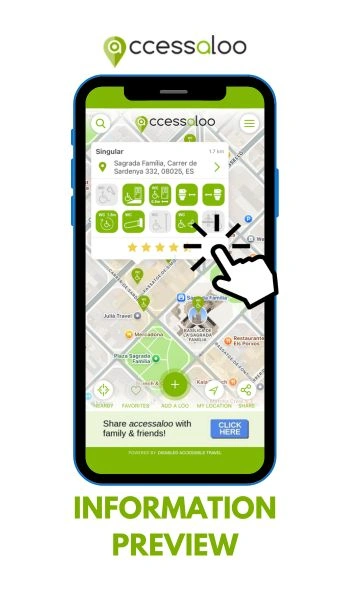
To get information on an accessible toilet, you can click the location pin. This will open the accessible facilities card preview, on which you can find:
- The name of the accessible loo
- How far this restroom is from you
- The address at which the toilet is located
- Green icons indicating the accessibility details of the restroom
- An average star rating other accessaloo users have given this toilet
Consulting the Full Accessible Facilities Card
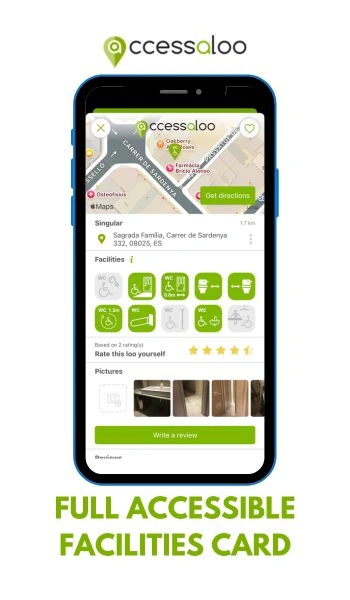
To get all details of the restroom, you can click anywhere on the preview. This will open the full listing where, in addition to the information of the preview, you can find:
- A button to “Get directions” to this loo: this button will redirect you to your navigation app to show the route to the toilet
- Pictures and reviews of the toilet by other accessaloo users
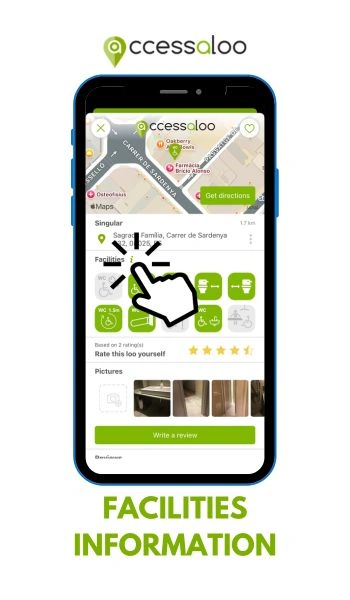
Facility icons
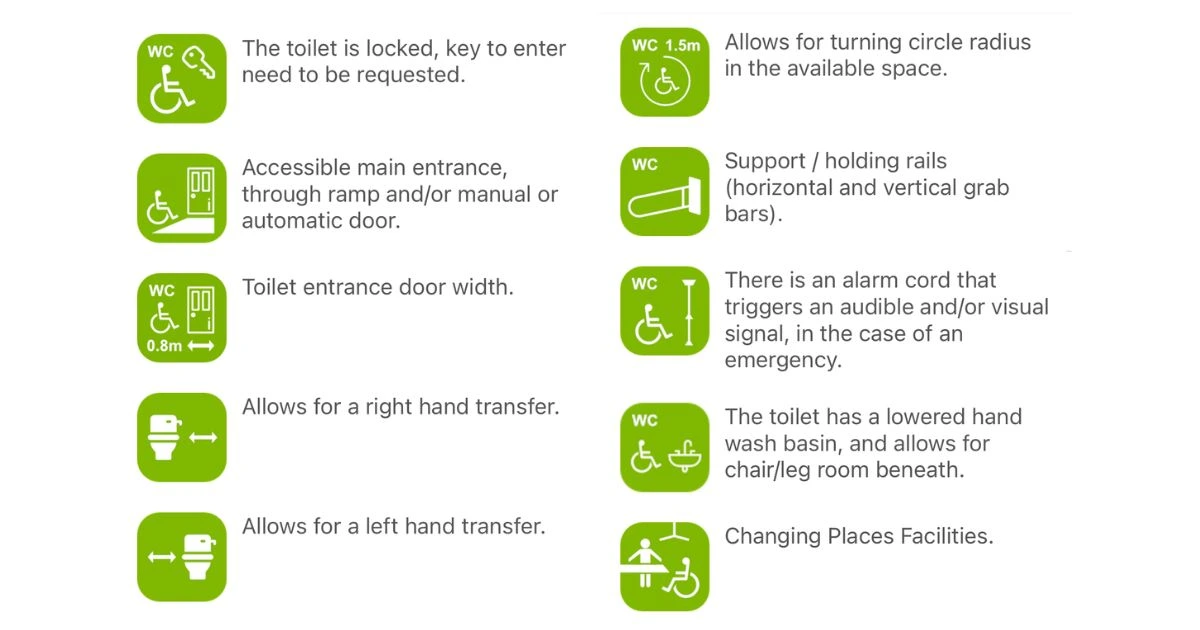
When you have a toilet’s accessible facilities card opened, you see several icons. You can find more information about them by consulting the full card and clicking the information icon (“i”) next to “Facilities”. This will give you the full list of icons and their meanings. On the image below, you can see what this list looks like.
When an icon is green on the card, it means that that specific facility is available at the accessible toilet. Grey icons do not apply.
Exiting the Accessible Facilities Card
To exit the information card of an accessible toilet just click the “X” in the top right corner. This will bring you back to the card preview. To close this one, you can press anywhere next to it on the map.
Can’t Find a Toilet Near You?
Are you searching for an accessible toilet near you, but are you not seeing any results in the accessaloo app? Don’t worry. It doesn’t always mean there isn’t a wheelchair accessible toilet or accessible public toilet nearby. It may simply mean that no one has added it to the map yet.
Accessaloo is a community-powered toilet finder, which means every user helps grow the database. If you can’t find the closest public toilet in your area, you can make a real difference by adding one yourself.
By contributing, you are not just solving your own search for a near me public toilet, but you are helping others confidently find accessible toilets when they need them most. Keep reading to learn how to add an accessible toilet to the map!
Adding a review to an Existing Accessible Toilet
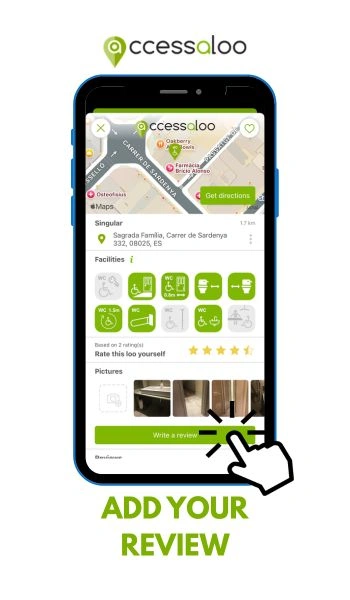
Did you make use of an accessible toilet that is already in accessaloo? Add your personal review and help others find toilets that match their needs by clicking the “Write a review” button in the accessible facilities card.
You can edit the available facilities, rate the loo, add your own pictures, and write your own review. Click “Add review” and let your experience help other users know what to expect when visiting this toilet.
Adding a New Accessible Toilet
Did you discover an accessible toilet that is not on the accessaloo App yet? You can easily add it and help the community by following these steps:
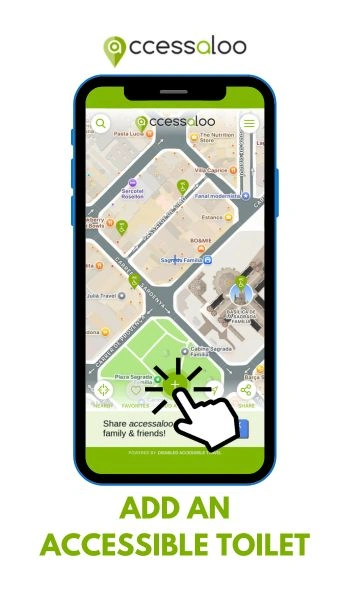
- Open the accessaloo App map
- Click the green “plus” button. You will find it in the middle on the bottom of your screen
- Drag the map to pinpoint the exact location of the toilet you want to add
- Fill out the details of the loo you are adding
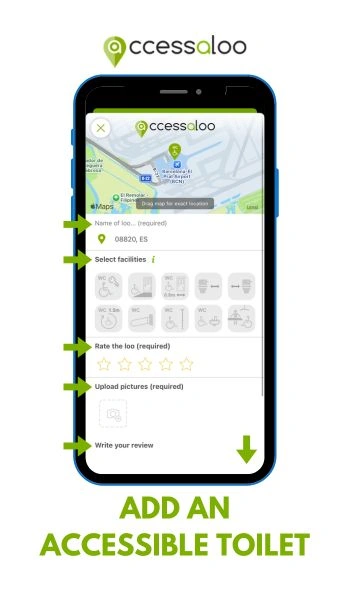
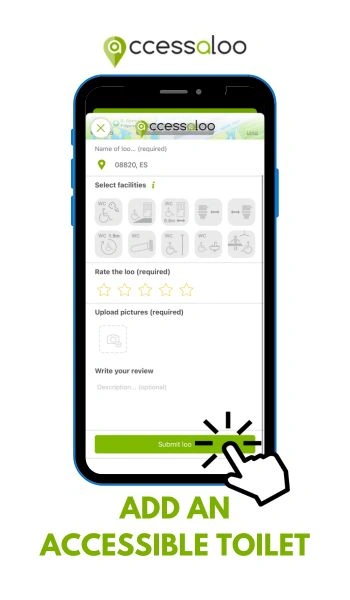
Name of the Loo (required)
Give the toilet a name. You can choose this name based on the neighborhood, street, restaurant, or café the loo is located at.
If you are in a place where there may be several accessible toilets, indicate, for example: “Barcelona-El Prat Airport, Terminal 1 Arrivals”
Select facilities
Choose the available facilities to indicate the degree of accessibility of this loo. You can click on the information (“i”) icon next to “facilities” to see what each icon means. Every clicked icon will become green to indicate it is a feature the toilet has. To cancel an icon, simply click it again to turn it off again.
Rate the Loo (required)
You can give the loo a star rating between 1 and 5 stars by clicking them.
Please consider the equipment available in the restroom. In addition, try to be objective and think about other users who may have less mobility than you.
Upload Pictures (required)
Add pictures of the accessible toilet. You can “camera” to take the pictures directly, or choose “Photo library” to pick images from your photo library in case you took any pictures before opening the accessaloo App. This option is also useful if you want to create the listing later.
Please try to capture pictures of the following items, from far enough back so that the available space can be seen:
- The exterior and interior door
- The toilet and the space around it
- Any available grab bars
- The sink
- The changing room, if there is one
Write your Review (optional)
Once you have filled out all the information above, you can add your personal review.
Here, you can write your overall impression of the restroom and its level of accessibility based on your degree of mobility. Please try to be as specific as possible. This will help other users know what to expect and whether this restroom will suit their specific needs.
In addition, you can indicate whether the toilet is free or paid, information about possible opening hours, any accessibility restrictions, or additional details.
When you are finished, click on the green “Submit loo” button.
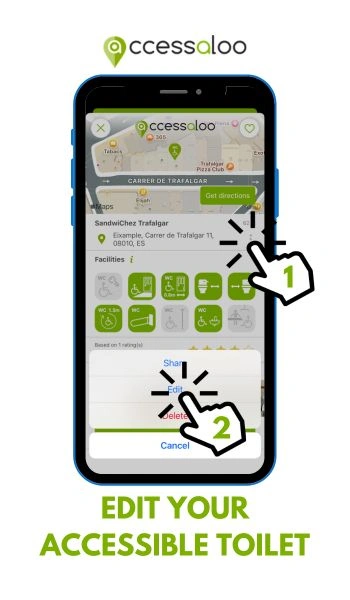
Edit your Loo
If you wish to change or add something after submitting your loo, you can open its listing and press the three dots next to the address. Press “Edit” to make any changes and click the green “Update loo” button when you are done.
Do you wish to remove your Loo? Click the same three dots and press the red “Delete” button.
Please note: If you are using a toilet recommended by another user and would like to add to the existing listing or give your opinion, open the accessible facilities card and click on the green “Write a review” button located below the photos.
Add a Toilet to your Favorites
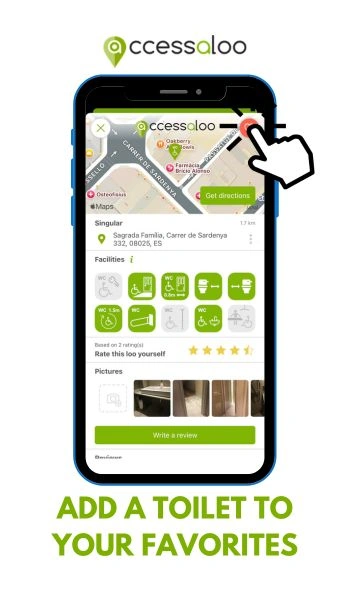
Did you find a toilet that you particularly like? You can add it to your favorites! Just tap the heart on the top left corner of the accessible facilities card. Now, when you are back on the map, you will see a small heart has been added to the toilet’s location marker.
Additionally, you can find the list of your favorite toilets by clicking on the heart icon called “FAVORITES” on the bottom left of your screen. To close this list, you can press anywhere on the map or just click the heart icon again.
To remove a toilet from your favorites list you can open the full accessible facilities card of that specific toilet and click on the heart icon in the top right corner. If the icon is red, it means it is in your favorites. If it is white, it is no longer part of the list.
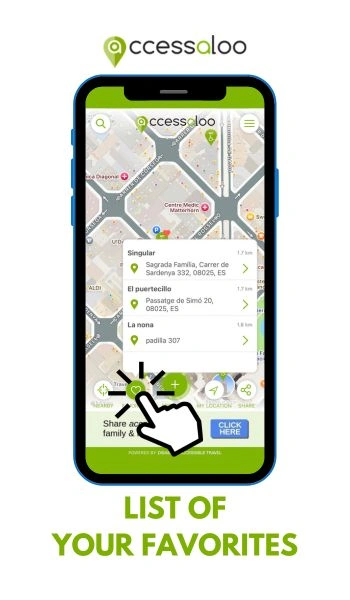
Share an Accessible Toilet’s Location
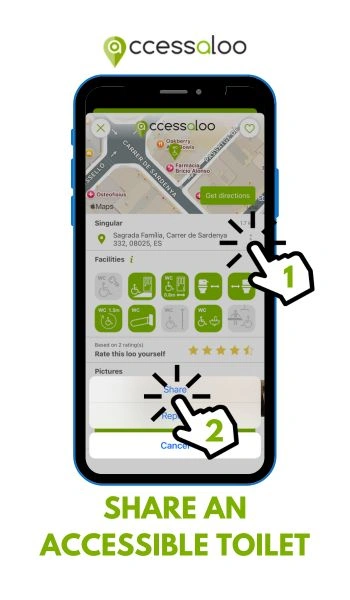
When you have the full accessible facilities card open, you will see three dots next to the toilet’s address. If you want to share an accessible toilet with someone, click “Share”, and your phone will give you different sharing options.
Reporting an Entry
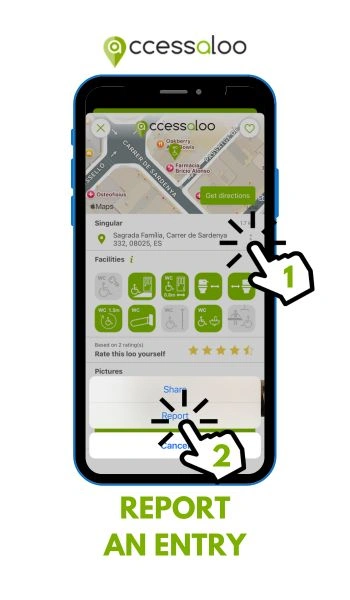
If you notice inappropriate entries, use the Report function via the three-dot menu. This can be a toilet listing or a review. Reporting inappropriate entries helps maintain reliable information across the toilet finder app.
The Hamburger Menu
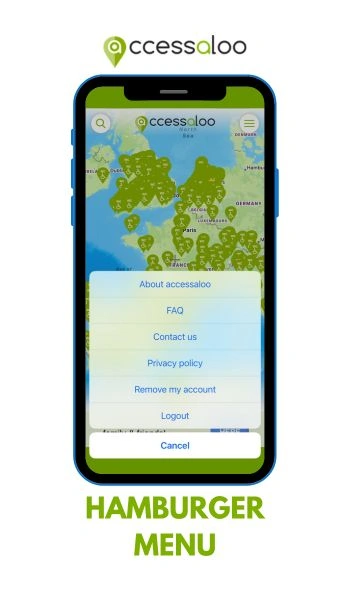
On the top right of your screen, you will find a hamburger menu. When you click on it you can read more information about accessaloo by pressing “About accessaloo”.
You can also consult the frequently asked question by clicking “FAQ”. This button will lead you to the accessaloo website, allowing you to find the answers to your questions. Didn’t find an answer there? Send us an email by clicking the next button in the hamburger menu, “Contact us”.
The next button is “Privacy policy”, which allows you to go through all the details of this app’s privacy policy.
Lastly, you have two more buttons: “Remove my account” and “Logout”.
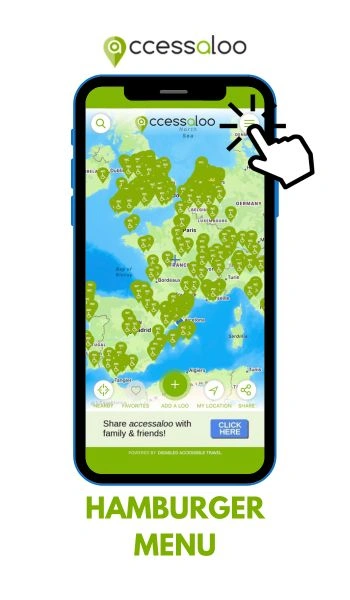
Logging Out of accessaloo
When you press “Logout” you will be brought back to the Login/Register screen. If you want to access the map again, you will need to log back in.
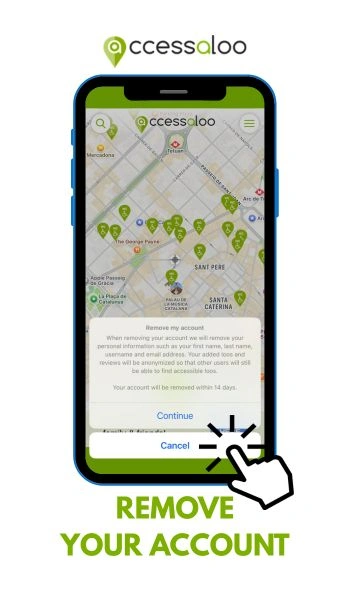
Removing your Account
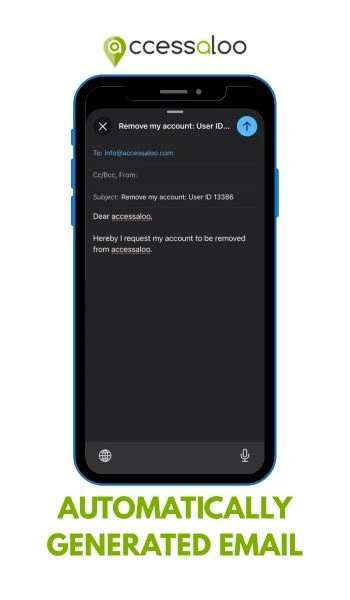
If you wish to remove your account, you will be prompted to send a removal request to accessaloo. All you need to do is click “send” and your account will be removed within 14 days. The loos you added will remain in the app but will be anonymized. This way other users can still find accessible toilets.
Frequently Asked Questions
What is accessaloo?
Accessaloo is a free app that helps you find accessible toilets across the world.
The app is user-generated, allowing any user to add accessible toilets, helping the community by providing detailed information about the loo.
Where can I download accessaloo?
Accessaloo is available on both the Apple Store and the Play Store.
How do I create my accessaloo account?
When you downloaded and opened the app, click on “Register” and fill in the fields. Once you are done, click the green “Register” button again. Now you can log in with the email address and password you chose.
How do I find accessible toilets?
Look for the green location markers with “WC” and the accessible icon on them.
Why can’t I find accessible toilets near me on accessaloo?
If you’re not seeing any results in the Accessaloo app near you, it doesn’t necessarily mean there isn’t an accessible toilet nearby. It may simply mean that no one has added it to the map yet.
Accessaloo is a community-powered toilet finder, which means the database grows through user contributions. You can help others find accessible toilets by adding the ones you find yourself.
How can I see the facilities that are available in an accessible toilet?
Click on the toilet’s location marker. This will give you a preview of the accessible facilities card. Click on this preview to see all the information available.
What do the facility icons mean?
You can find the explanation for each icon by clicking the information (“i”) icon next to “Facilities”. This gives you a list with each icon and its explanation.
Is accessaloo free?
Yes! This accessible toilet finder app is completely free!

Keep reading
You might also like
Disability Tag
Confused about disability discounts in Europe? Not all European attractions offer the same disability discounts, and requirements can differ. Discover how to…